
Recording Management
The Recording Management module is used to search and manage room recording files.
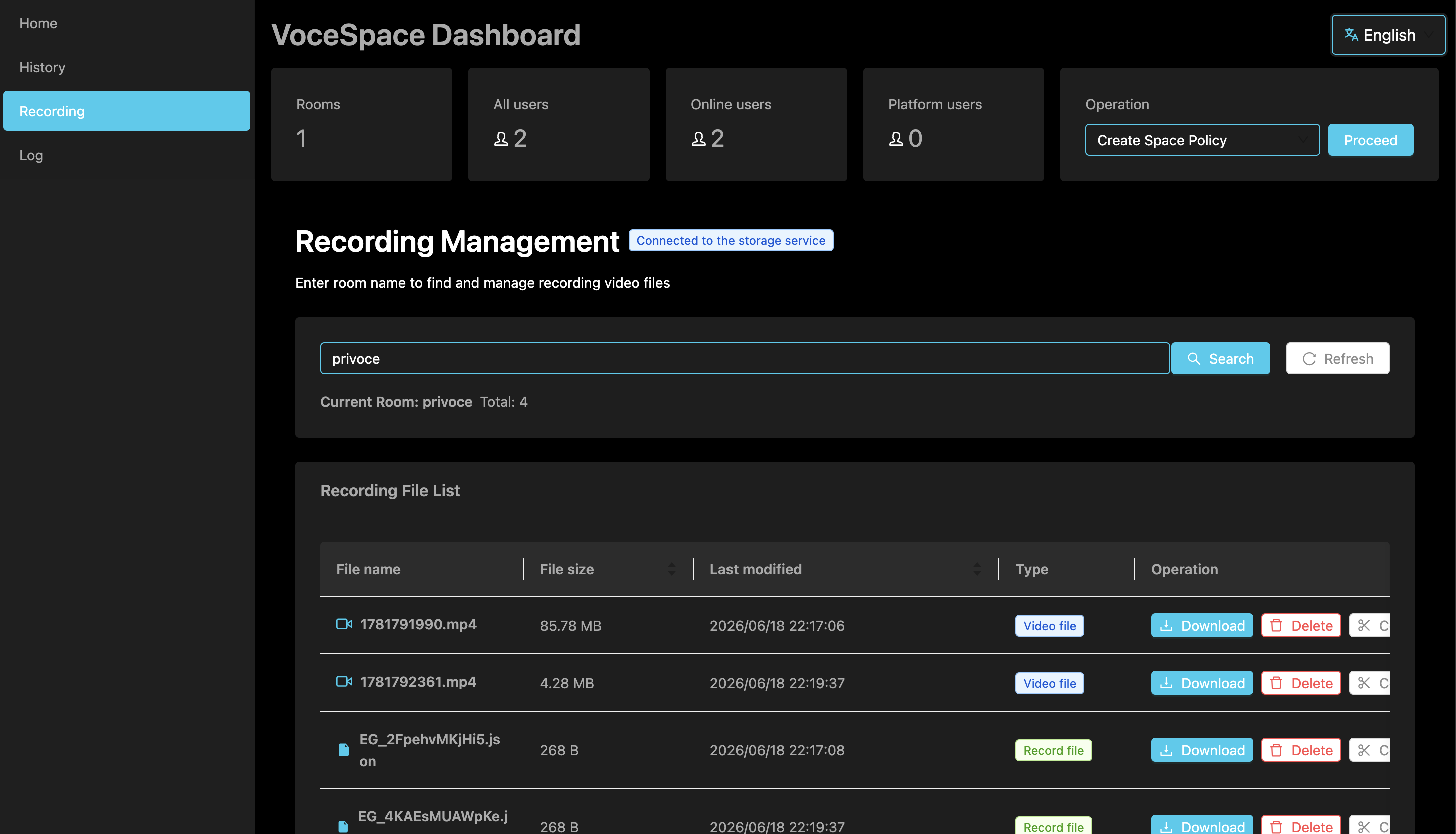
Search Recording Files
- Enter the room name in the search box
- Click the "Search" button
- The system searches for the room's recording files from S3 storage
Recording File List
After a successful search, a list of recording files is displayed:
| Column | Description |
|---|---|
| Filename | Name of the recording file |
| Size | File size |
| Created Time | Recording start time |
Actions
| Action | Description |
|---|---|
| Download | Click to generate a download link, valid for 3 days |
| Delete | Click to permanently delete the recording file from S3 |
Connection Status
The S3 connection status is displayed at the top of the page:
- Connected: S3 service is normal, recording management features are fully functional
- Disconnected: S3 service is unavailable, please check your configuration
S3 Configuration
Recording files are stored in Amazon S3. You need to configure S3 service information in vocespace.conf.json:
| Field | Description |
|---|---|
| accessKey | AWS Access Key ID |
| secretKey | AWS Secret Access Key |
| bucket | S3 bucket name |
| region | AWS region (e.g., us-east-2) |
How to Configure S3 in AWS Console
1. Create an IAM User
- Log in to the AWS Console and navigate to the IAM service
- Select "Users" from the left menu and click "Create User"
- Enter a username, check "Provide user access to the AWS Management Console and programmatic access", then click Next
- Select "Attach policies directly", search for and check
AmazonS3FullAccess(or create a custom policy to limit permissions) - After creation, get the "Access Key ID" and "Secret Access Key" from the user details page
2. Create an S3 Bucket
- Navigate to the S3 service and click "Create bucket"
- Enter a bucket name and select a region
- Uncheck "Block all public access" if needed
- Click Create
3. Fill in the Configuration File
Enter the obtained accessKey, secretKey, bucket name, and region into the s3 configuration in vocespace.conf.json.
Note: Keep your credentials secure and do not commit them to public code repositories.
Automatic Cleanup
After recording files are stored in S3, the system automatically creates a cleanup task for 7 days later. Files will be automatically deleted after 7 days to avoid continuous storage cost growth.
Table of Contents